

Upgrading to a brand-new smartphone, laptop, or OLED gaming monitor should be a breathtaking visual upgrade. Yet thousands of users experience the opposite reaction: within twenty minutes of unboxing, their eyes feel burning, dry, or fatigued, often accompanied by throbbing temples or mild nausea. If you've wondered why your eyes felt more comfortable on your five-year-old budget screen than on your new flagship display, it is not your imagination.
Modern displays employ sophisticated driving algorithms, optical prisms, and high-frequency modulation designed to maximize peak brightness and HDR punch. Unfortunately, some of these same technologies place intense biological stress on your visual cortex and ciliary eye muscles. Here is a scientific breakdown of what is happening behind the glass in 2026—and the precise steps you can take to reclaim visual comfort.
The Hidden Culprits Behind Modern Display Eye Strain
1. PWM Flicker, Modulation Depth & The Stroboscopic Effect
To control brightness, almost all modern OLED panels and some Mini-LED displays use Pulse Width Modulation (PWM). Rather than smoothly reducing electrical voltage, the screen rapidly turns pixels on and off at maximum intensity. At 50% brightness, the screen is turned fully on for half the time and completely black for the other half.
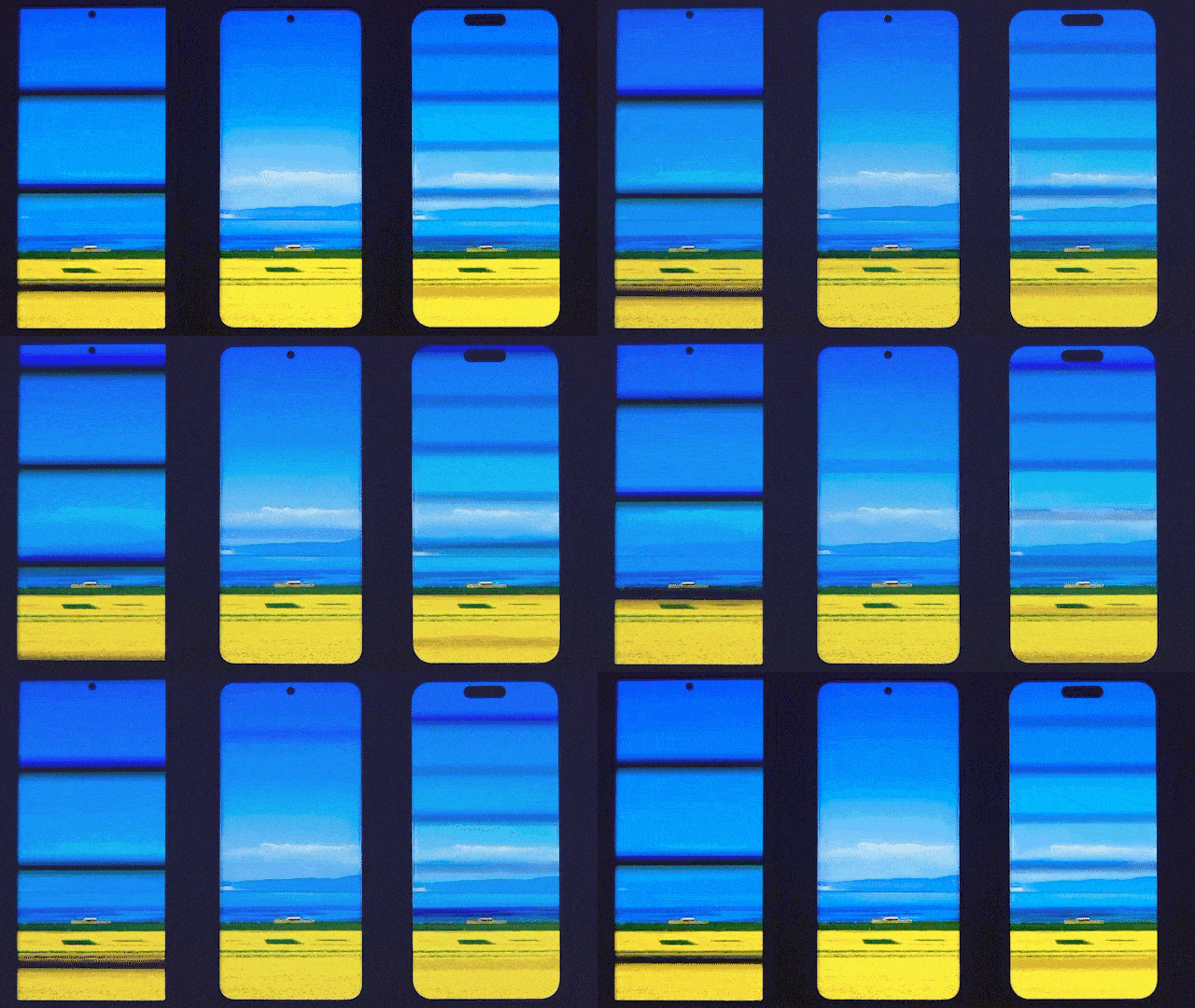
Even when manufacturers advertise "ultra-high frequency 3840Hz or 4320Hz PWM", two critical factors still trigger ocular strain:
- Modulation Depth & Duty Cycle: In dim environments, the "off" duration of each cycle becomes significantly longer than the "on" pulse. This deep modulation depth produces subliminal stroboscopic flashes that force your iris sphincter muscles into perpetual micro-contractions.
- Low-Frequency Base Ripple: Under IEEE PAR 1789 standards, many displays running at 3840Hz still contain an underlying 60Hz or 120Hz amplitude ripple linked to the refresh scan-line clock. The human retina detects this subliminal modulation, causing headaches and eyestrain.
2. Temporal Dithering (FRC): Microscopic Pixel Shimmering
One of the most overlooked causes of severe display nausea in 2026 is Temporal Dithering (Frame Rate Control - FRC). To display 10-bit color (1.07 billion colors) on native 8-bit panels, or 8-bit color on budget 6-bit panels, graphics drivers and display timing controllers (T-CON) rapidly flicker adjacent pixel shades every frame at 60Hz or 120Hz to trick the human brain into perceiving the target intermediate hue.
While the human eye perceives a static solid color, your photoreceptors are continuously bombarded with millions of microscopic vibrating color transitions. For dithering-sensitive individuals, this rapid optical stimulation overstimulates the visual cortex, causing rapid eye strain, brain fog, and dizziness even on displays with 100% DC dimming.
3. Refresh Rate Dynamics: High Refresh vs. LTPO VRR Fluctuations
High refresh rates (120Hz, 144Hz, 240Hz) are inherently beneficial for motion smoothness because they minimize retinal tracking blur. However, the modern implementation of LTPO (Low-Temperature Polycrystalline Oxide) variable refresh rates introduces a subtle trade-off:
LTPO panels dynamically ramp their refresh rate between 1Hz, 10Hz, 30Hz, 60Hz, and 120Hz hundreds of times an hour to save battery. During sudden frequency transitions (such as touching the screen while reading an article), slight gamma shifts and minor luminance steps can occur. This rapid gamma micro-stepping can cause subconscious visual fatigue during long reading sessions.
4. Subpixel Distribution & Narrow-Band Blue Light Peaks
In standard LCD screens, red, green, and blue subpixels share equal surface area in a uniform stripe. In mobile OLED Diamond Pentile arrays, the blue subpixel covers roughly 10% to 15% of the total pixel area. To maintain target white balance, the blue subpixel must be driven at significantly higher luminance density.
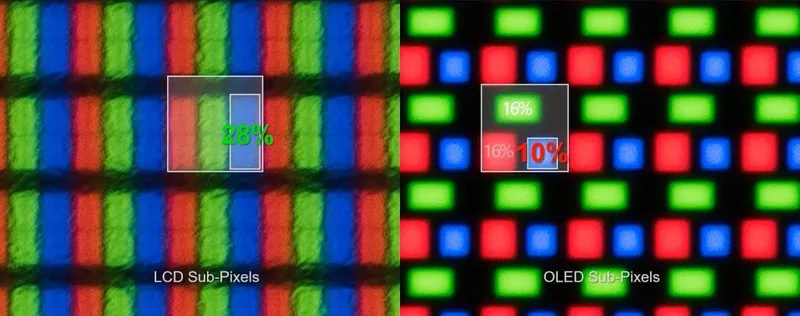
Furthermore, modern wide-gamut OLED emitters feature very narrow spectral spikes centered around 450nm—the exact wavelength range that triggers maximum photochemical stress in retinal pigment epithelial cells and strongly suppresses melatonin synthesis.
5. Ambient Light Mismatch & Pupillary Exhaustion
Viewing a stark, cool 6500K display inside a dimly lit room with warm 2700K ambient bulbs forces your eyes to balance conflicting optical focal planes and color temperatures. High-contrast glare causes your pupil to fluctuate continuously between dilating for ambient darkness and contracting for the bright screen center, rapidly depleting tear film and inducing ocular migraine.
Practical Solutions & Optimizations for 2026
For Smartphone & Tablet Users:
- Enable Hardware Anti-Flicker / DC Dimming: Many Android manufacturers (Xiaomi, Vivo, OnePlus, Realme) include an "Anti-Flicker" or "DC Dimming" toggle under Display Settings or Developer Options. While it may slightly alter color accuracy at low brightness, it flattens the PWM waveform and dramatically reduces flicker.
- Switch to Natural / Warm Color Profiles: Move away from the default "Vivid" or "Boosted" color profile, which stretches color gamut artificially and pushes high-energy blue saturation. Select "Natural" (sRGB calibrated) and nudge the color temperature slider toward Warm.
- Turn on Ambient Color Adaptation: Use Apple's True Tone or Android's Nature Tone Display. This dynamically matches screen white balance to surrounding ambient lighting.
- Avoid Total Darkness: Never use a phone in complete darkness. Keep a soft warm lamp or nightlight illuminated in the room so your eyes maintain a comfortable peripheral luminance reference.
For PC & Monitor Users:
- Install a Balanced Monitor Light Bar or Bias Lighting: Affixing an LED bias light behind your monitor (or mounting a high-CRI monitor light bar) illuminates the wall behind your screen. This reduces the harsh contrast ratio between your display and the room, preventing pupil overexertion.
- Disable Temporal Dithering if Sensitive: If you experience persistent eye strain despite using a flicker-free monitor, test disabling GPU temporal dithering. Community tools like ColorControl (for LG/Samsung displays), novideo_srgb, or GPU driver registry toggles allow you to enforce true 8-bit un-dithered output.
- Calibrate Display Gamma to 2.2: Avoid monitors set to aggressive "Gaming Black Equalizer" modes or artificially steep gamma curves that over-contrast mid-tones and increase visual fatigue.
- Match Screen Luminance to Your Environment: Hold a clean sheet of white paper next to your monitor. Adjust your monitor's brightness until the white point on a blank Word document or webpage visually matches the brightness of the paper under your office lighting.
Diagnostic Checklist: Test Your Screen Today
Whenever you set up a new display or notice unusual eye fatigue, checking for subpixel anomalies, color tint bands, and subtle image persistence is vital. Run our free browser-based Interactive Screen Diagnostics & Burn-in Tool to inspect pixel health, evaluate color uniformity, and keep your display performing smoothly.