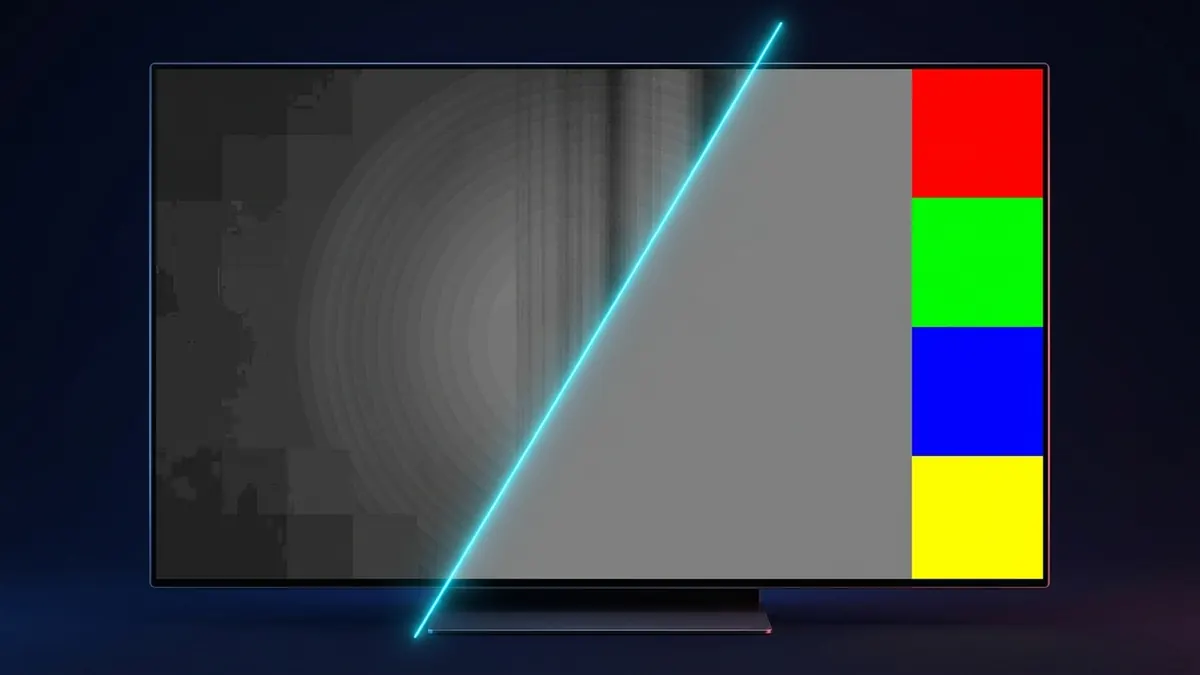
Nearly 90% of new OLED TV and console owners follow the exact same ritual on unboxing night: they mount their new LG C4, Samsung S90D, or Sony Bravia OLED, turn off every lamp in the living room, open the built-in YouTube app, and search for an "OLED burn-in test" or "5% gray uniformity test." Within seconds, panic sets in. Instead of a smooth charcoal canvas, the screen erupts into blocky chessboard patches, concentric contour rings, faint green-magenta blotches, and jagged vertical streaks.
Before you wrestle a 65-inch display back into styrofoam for a warranty exchange, take a breath: streaming a dark gray test video on YouTube primarily tests Google's video compression pipeline—not your OLED panel. Near-black uniformity slides sit in the exact luminance zone where lossy streaming codecs break down hardest. In this technical guide, we break down the four video-encoding physics culprits behind "fake banding" on YouTube, explain why direct GPU framebuffer rendering inside our uncompressed browser OLED burn-in & gray uniformity test is bit-accurate, and walk through the exact fullscreen setup—plus critical safety caveats—for Samsung Tizen TVs, Xbox Series X|S, LG webOS, and PlayStation 5.
Why YouTube OLED Test Videos Create "Fake Banding": The 4 Video Pipeline Culprits
A 5% gray diagnostic slide sits right on the threshold of near-black—roughly RGB(13, 13, 13) in 8-bit full range, emitting well under 0.3 to 0.5 nits on an OLED calibrated to a 2.2 or BT.1886 gamma curve. At this microscopic current level, streaming video introduces four compounding mathematical distortions before a single pixel on your TV ever lights up:
Every video uploaded to YouTube—even if exported by the creator as a lossless master—is aggressively re-encoded into VP9, AV1, or H.264 (AVC) to save bandwidth. Rate-control encoders allocate bits using psychovisual models that assume human vision is insensitive to dark, motionless areas. When fed a static 5% or 10% gray frame, the encoder starves the stream of bitrate and groups pixels into rigid 16×16 macroblocks (H.264) or 64×64 and 128×128 coding superblocks (VP9 and AV1). Subtle dithering in the source file gets quantized away into flat steps, producing unmistakable square macroblocks and stair-stepped contour rings precisely where OLED sub-pixels sit on the steepest slope of their electro-optical transfer curve.
Consumer SDR streaming pipelines rely on 8-bit Studio Swing (Limited Range 16–235) rather than PC Full Range (0–255). Instead of 256 grayscale steps, pure black is anchored at digital code 16 and reference white at 235, leaving just 220 discrete luma steps. Near 5% to 10% dark gray (codes 21 through 32), moving up or down by a single integer step creates a glaring relative jump in brightness against an OLED's true 0.00-nit infinite-contrast black floor.
On a traditional IPS or VA LCD television, constant backlight leakage of 0.05 to 0.15 nits creates a glowing optical haze that masks coarse 8-bit quantization noise. On an OLED, zero backlight glow means every single quantization step is laid bare. Worse yet, if your streaming device or TV HDMI input mismatches Limited (16–235) and Full (0–255) RGB range, near-black codes are either crushed to dead black or stretched apart—amplifying compression noise into alarming fake Dirty Screen Effect (DSE).
3. 4:2:0 Chroma Subsampling
YouTube streams standard and 4K videos using YCbCr 4:2:0 chroma subsampling, which discards three-quarters of the color resolution—storing blue-difference and red-difference color planes at 1920×1080 inside a 3840×2160 4K frame. During fine dead-pixel grid checks or primary RGB transitions, 4:2:0 subsampling smears single-pixel edges across 2×2 pixel clusters. On dark gray slides, low-bitrate chroma rounding errors frequently manifest as faint green or magenta tint clouds that mimic OLED panel mura even when the panel itself is completely neutral.
Even if you select a video titled "4K HDR Pure OLED Gray Test," YouTube's adaptive DASH player routinely starts the first 10 to 20 seconds at a heavily compressed 720p or 1080p buffer tier while probing your Wi-Fi throughput. Your TV then upscales low-bitrate macroblocks across a 55-inch to 83-inch 4K panel—right at the exact moment most anxious buyers pull out their phones to take a photo.
Quick Sanity Rule: Pause & Switch Sources Before Panicking If patchy blocks, contour rings, or blotchy shadows shift every few seconds, snap into sharp square edges, or vanish the moment you open an uncompressed browser slide, your OLED panel is completely healthy—you were simply looking at VP9/AV1 video compression.
Why Native Browser Rendering Is Bit-Accurate (3-Way Diagnostic Comparison)
When you open our fullscreen OLED burn-in & gray uniformity test in a web browser, no video codec, inter-frame predictor, or 4:2:0 color matrix sits between the code and your screen. Instead, your device's GPU writes mathematically identical, uncompressed RGB values straight into the native 4:4:4 display framebuffer across all 8.29 million pixels of a 4K screen:
Exact Calibrated Gray Presets & Continuous 0–255 Sweep: Jump instantly to 50% Gray (rgb(128, 128, 128)) to spot burn-in ghost outlines, 20% Gray (rgb(51, 51, 51)) for dark-room uniformity, or drag the fullscreen 0–255 brightness slider between codes 13 and 38 (5%–15% near-black) to inspect true vertical banding without a single compression macroblock.
Pure Sub-Pixel Channel Isolation: Cycle through bit-pure Red (rgb(255, 0, 0)), Green (rgb(0, 255, 0)), Blue (rgb(0, 0, 255)), Yellow (rgb(255, 255, 0)), White, and 0.00-nit Black—with floating controls that auto-hide after 2.5 seconds of inactivity. For a complete walkthrough of what each color reveals, see our step-by-step guide on how to check for screen burn-in.
Zero-Artifact High-Refresh Repair: Unlike "10-Hour YouTube Burn-In Fix" videos—which smear rapid pixel noise into blurry gray soup and often stamp a static channel watermark into the bottom-right corner—our GPU-accelerated screen burn fix tool (/launch/) renders crisp, uncompressed 60Hz, 120Hz, and 144Hz RGB cycling and checkerboard inversion patterns with zero watermarks.
High, but limited to whichever static files you pre-saved
Watermark / UI Risk
High — channel logos, pause overlays & "Up Next" cards
Auto-hides in 2.5s (verify TV browser hides top bar)
Low once media player playback HUD fades out
Setup Speed
Fast, but frequently misdiagnoses healthy panels
Instant — open URL on PC, Xbox, Samsung TV, or phone
Slow — requires PC download, FAT32/exFAT USB & file navigation
Device-by-Device Fullscreen Playbook for Smart TVs & Consoles
Smart TV and console browsers handle fullscreen chrome differently than desktop Chrome or Edge (where pressing F11 hides every pixel of the OS). Follow the exact verified workflow for your hardware below so no stray toolbar skews your inspection or leaves a static border on your OLED:
Samsung's built-in Tizen Internet browser includes a dedicated borderless toggle that makes native TV testing effortless:
Open the built-in Internet app from your Samsung Smart Hub home screen.
Use your remote to select the Menu (≡) icon in the top-right corner, then open Settings → General.
Enable Hide Tabs and Toolbar automatically (labeled Hide Tabs and Menu Bar on select Tizen firmware versions).
Navigate to fixburnin.com/screen-burn-in-test/, click the test canvas to enter fullscreen, and leave your SolarCell remote completely still for 3 seconds so both the pointer and browser header vanish edge-to-edge.
2. Xbox Series X|S (Microsoft Edge Chromium — Best Console Method)
Xbox Series X and Series S ship with a full Chromium-based Microsoft Edge browser capable of true 4K output—provided you disable Xbox's legacy overscan border setting first:
Press the Xbox button on your controller and navigate to Settings → General → TV & display options.
Select Video fidelity & overscan and uncheck Apps can add a border. (If it already appears unchecked, toggle it on and back off once, then quit and relaunch Edge.)
LG OLED owners can launch the built-in webOS Web Browser, load fixburnin.com/screen-burn-in-test/, click fullscreen, and set the LG Magic Remote flat on a coffee table or face-down so its motion-sensing cursor disappears automatically.
Honest Pro Tip for LG webOS: Using the native webOS browser for a 1-to-2-minute uncompressed gray and RGB inspection is an excellent, zero-cable way to prove that YouTube's blocky artifacts aren't real panel defects. However, certain webOS firmware revisions retain a faint ~15px top exit strip even inside HTML5 fullscreen mode. Because of that static bar, never leave static slides or browser repair sessions unattended for 30+ minutes inside webOS. For extended pixel recovery on an LG TV, either plug a laptop into HDMI and press F11, or use LG's hardware routine under Settings → General → OLED Care → OLED Panel Care → Pixel Cleaning.
4. PS5 & PS5 Pro Owners (Critical Warning: Skip the Hidden Browser Trick)
Unlike Xbox, Sony omitted a standalone full-screen web browser app on both the PS5 and PS5 Pro. Community tutorials often suggest opening a hidden WebKit popup by sending a link through PS Messages / Game Base and punching in via Settings → Accessibility → Display and Sound → Zoom (PS Button + Square).
WARNING for PS5 Players: Do Not Run OLED Tests or Repairs Inside the Hidden PS5 Browser The PS5's internal help-viewer browser runs inside a restricted window frame. Forcing it wider with Accessibility Zoom either leaves cropped letterbox borders along the edges or introduces non-integer upscaling blur—and leaving a bordered high-brightness repair pattern running risks creating uneven sub-pixel border wear!
Instead, PS5 and PS5 Pro owners should use one of these three safe, pixel-accurate methods to inspect their OLED TV (and pair it with our PS5 OLED HDR calibration & HUD burn-in prevention guide before marathon gaming sessions):
Use Your TV's Native Browser Directly: Run /screen-burn-in-test/ on Samsung Tizen (with auto-hide enabled) or for a quick 1–2 minute verification on LG webOS.
Swap the PS5 HDMI Cable Into Any Laptop for 2 Minutes: Unplug the HDMI end from your PS5, plug it into a Windows laptop or MacBook, open /screen-burn-in-test/, and press F11 (or Ctrl+Cmd+F) for 100% uncompressed 4K fullscreen output.
Load Uncompressed 24-Bit PNG Slides via USB: Copy lossless 3840×2160 PNG slides (5% gray, 20% gray, 50% gray, and pure Red/Green/Blue) onto a USB flash drive and open them in your TV's built-in Media Player with on-screen slideshow controls hidden.
How to Tell Real OLED Vertical Banding vs. Burn-In vs. Compression Artifacts
Once you eliminate YouTube compression by testing with an uncompressed signal, what if you still spot faint vertical lines on a dark 5% to 20% gray screen? Understanding the difference between normal manufacturing variance and actual sub-pixel damage will save you unnecessary stress:
Brand-new WOLED panels (used in LG B/C/G-series TVs, Sony Bravia 8, and WOLED monitors) drive sub-pixels with microscopic currents below 0.5 nits at 5% gray, where minor transistor threshold-voltage tolerances frequently appear as faint vertical "curtain" lines at zero hours out of the box (whereas QD-OLED panels typically look cleaner at 5% gray initially, though panel-to-panel variance still exists). Crucially, an OLED panel always looks its absolute worst at hour zero. Watch 4 to 20 hours of normal full-screen movies or games, then turn the TV off with the remote while leaving it plugged into wall power: its first automatic 4-hour standby compensation cycle (5–10 minutes) measures thin-film transistor drift and smooths out 80% to 90% of initial out-of-the-box banding.
Smartphone Camera Warning: Never judge near-black OLED uniformity through a phone camera's automatic Night Mode. Multi-second computational exposures boost shadow contrast by 300% or more, turning invisible sub-1% luminance tolerances into dramatic blotches your naked eyes will never see in real movies or games.
Why does my new OLED TV look patchy and blocky on YouTube 5% gray tests?
YouTube re-encodes uploaded test videos with lossy VP9, AV1, or H.264 compression, 8-bit 16–235 studio-swing quantization, and 4:2:0 chroma subsampling. Because encoders starve flat, dark frames of bitrate, they group pixels into visible macroblocks and contour steps that your OLED's 0.00-nit black floor exposes ruthlessly. Switching to our uncompressed browser burn-in test bypasses video compression completely.
Are faint vertical lines on dark gray screens OLED burn-in?
No. Faint vertical lines visible exclusively on dark 5% to 20% gray backgrounds—especially on a brand-new WOLED TV—are normal near-black transistor uniformity variance (vertical banding), not burn-in. Burn-in imprints recognizable shapes of static UI elements (logos, health bars, or taskbars) that show up on 50% gray and pure Red, Green, or Blue slides. Most out-of-the-box vertical banding settles dramatically after 4 to 20 hours of normal viewing and the TV's first automatic standby compensation cycle.
Can I run a browser burn-in test directly on LG or Samsung OLED TVs?
Yes. On Samsung Tizen OLED TVs (S90C, S90D, S95C, S95D), enable Hide Tabs and Toolbar automatically inside the Internet app's Settings → General menu for true edge-to-edge fullscreen. On LG webOS OLED TVs (C2, C3, C4, G3, G4), the built-in Web Browser works great for a quick 1-to-2-minute uncompressed check when you set the Magic Remote down, though you shouldn't leave static browser pages unattended for 30+ minutes if your firmware retains a thin ~15px top bar.
Why shouldn't I use the PS5 hidden browser for OLED screen repair?
The PS5 and PS5 Pro lack a native full-screen browser app, and opening links via the PS Messages workaround renders pages inside a restricted frame. Using Accessibility Zoom (PS Button + Square) leaves cropped borders or scaling blur—meaning extended high-brightness repair patterns could age the center of your panel unevenly compared to the masked borders. Use your TV's native browser, an Xbox Series X|S, a laptop over HDMI, or USB PNG slides instead.
Should I run manual Pixel Cleaning on a brand-new OLED TV out of the box?
No—avoid triggering deep manual Pixel Cleaning / Pixel Refresh right out of the box unless instructed by manufacturer support. Simply watch normal full-screen content for at least 4 cumulative hours and turn the TV off with the remote while keeping it plugged into the wall. The automatic 5-to-10-minute standby compensation cycle will safely calibrate near-black uniformity without prematurely aging the organic emitters.
Test or Repair Your Display Free in Browser
Check full-screen 50% gray, white, black & RGB uniformity first, or run uncompressed color-cycling patterns to clear temporary image retention.